A video editor in Pro: crop, cut, blur, timers and captions
A lot of videos need a small fix before you send them. The good part is somewhere in the middle. The frame is wide, but people will watch it on a phone held upright. Someone’s licence plate is in view. Until now that meant downloading the file, opening an editor, exporting and uploading again.
Now you can do it on tapeshelf. Open one of your videos and press Edit video, or right-click its tile and pick Edit video…. The editor comes with Pro and works on the videos you uploaded yourself. The self-hosted version will have it for everyone once it’s out (what self-hosting will look like).
Each tool below has a small working copy you can play with. They run in this page on a drawn clip, and nothing is uploaded anywhere.
Frame: any shape, turned and flipped
Pick a shape (16:9, 9:16, square or 4:5 for a post) or choose Free and draw your own frame, then move it to where things happen. A horizontal video can come out vertical or square, and the other way round. If the phone was held sideways, turn the picture a quarter at a time. You can also Mirror it or flip it Upside down. The editor always shows what size the result will be.
Time: the ends and the middle
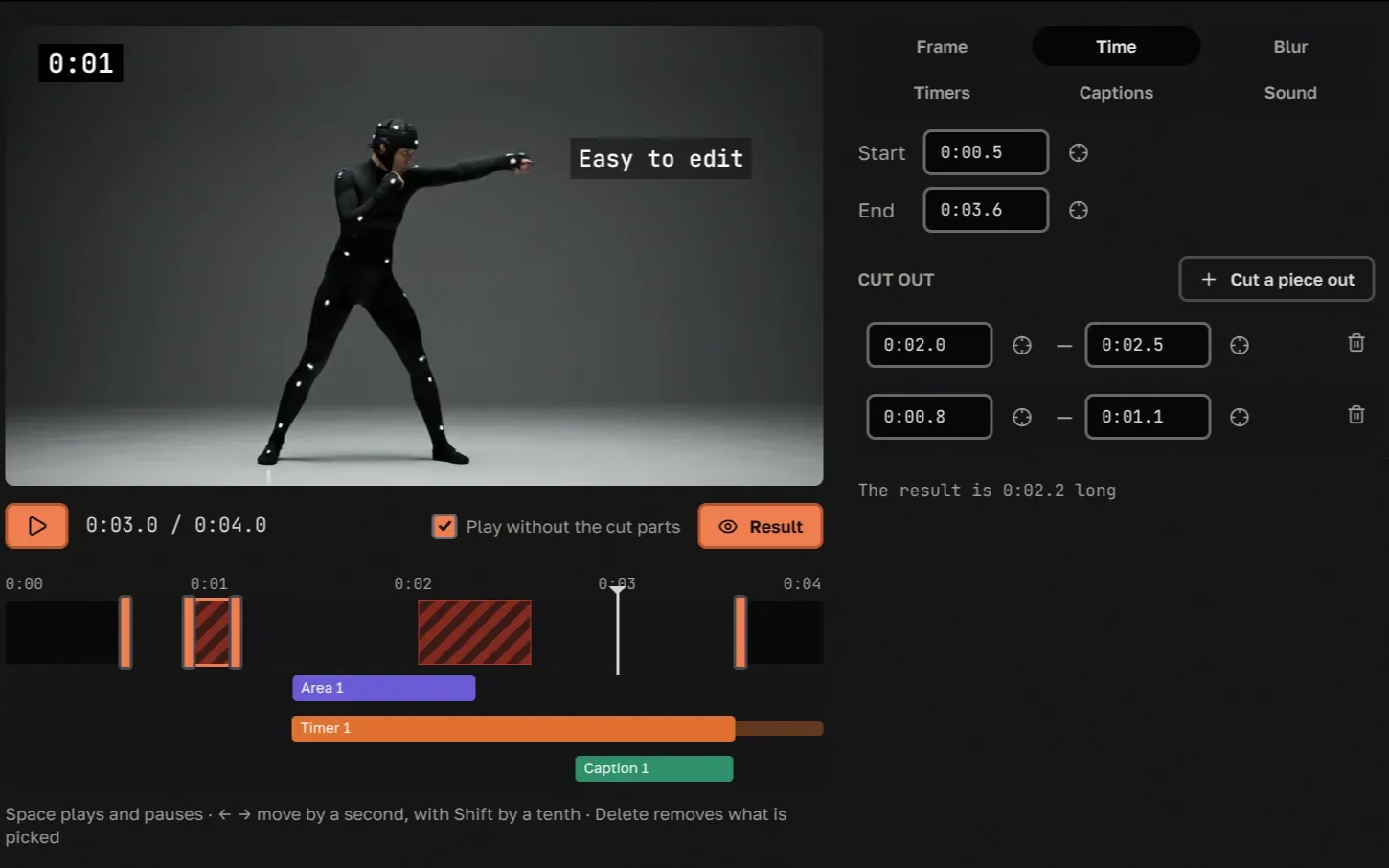
Drag the two ends of the strip to start later and stop sooner. Then cut out what’s in the way, like a long pause, a fumble or a minute of the floor. You can take out several pieces anywhere in the video, and the rest is joined smoothly. Turn on Play without the cut parts to watch exactly what people will get.
Hide what shouldn’t be seen
Draw an area over a face, a phone number or a plate and pick how it disappears: Blur or Cover with a solid patch. Each area has its own time, from when it appears to when it’s gone, and one video can have up to twenty of them.
Timers
A timer is a stopwatch that runs from 0:00 between two moments you pick, say the start and end of a lap, a trick or a run. Then it stays on screen five more seconds so the time can be read, and goes. It shows minutes and seconds on a plain black plate. Put it anywhere, size it, and add one per attempt or per round. It counts the original video’s time, so a cut made while it runs makes the numbers jump.
Captions
A line of text on a soft dark plate, shown between two moments: a name, a place, a joke. It takes up to 200 characters, and you move and size it like a timer. Short works best.
Sound
Set the volume anywhere from silence to twice as loud. Above 100 % a limiter keeps it from crackling. Even out the loudness makes quiet parts louder and loud ones quieter, which helps a lot with phone recordings. It’s applied when you save, so you’ll hear it in the finished video.
Saving: into the video, or as a copy
Save writes the edit into the video itself, after asking you to confirm. Everyone who has the video, on your shelf and on the shelves of people you traded it with, sees the new version at the same link. The old version isn’t kept, so there’s nothing to undo, and your next edit starts from this result.
Save as a copy leaves the video as it is and puts a new one next to it, in the same category and the same stack. If you edit the copy later, you’re working on the copy, and the original stays untouched.
The edit is made on our servers. You can close the tab right after pressing the button; a notification comes when the new version is ready. Until then the video shows Editing on your shelf, and nobody can play it mid-change.
Shortcuts
Space plays and pauses. ← and → move by a second, or by a tenth with Shift. Delete removes what’s picked. Ctrl+Z and Ctrl+Shift+Z undo and redo. Result shows only what the video will become: the new frame, without the editing marks.
What you get
An ordinary video file, H.264 with AAC sound, up to 1920 pixels on the long side (smaller videos aren’t scaled up). It plays everywhere and downloads like any other video on tapeshelf. Editing never changes who the author is, and videos you got from other people stay as their authors made them.
The editor comes with Pro, along with more room, downloads without limits, a longer trash, a page you can hide and passwords on temporary links. If you have Pro, it’s already on every video you uploaded.